



The following outlines the process to submit an invoice in IPP at www.ipp.gov.
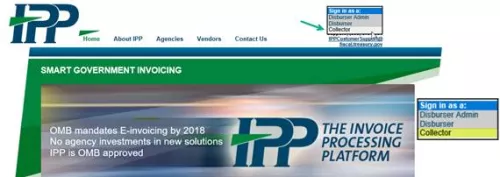
- Sign into IPP at www.ipp.gov.
- From the "Sign-In as a" drop-down menu in the upper right corner, select Collector.
Image
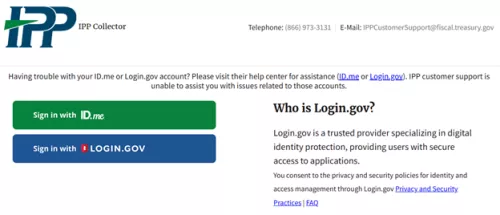
- Login using ID.me or Login.gov.
Image
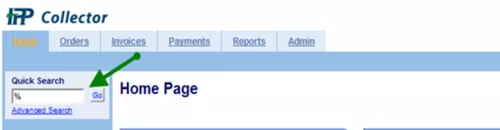
- On the Home Page, use % as a wildcard in the Quick Search field. Select Go to initiate the search.
Image
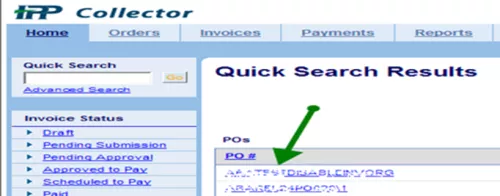
All open purchase orders (related to your company) will populate.
- Click (select) the purchase order for which you would like to create an invoice.
Orders serviced by the Bureau of the Fiscal Service have a 3-digit customer identifier added to the beginning of each purchase order number.
Image
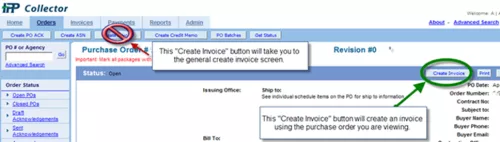
- From the Purchase Order screen, select the Create Invoice button located in the status bar.
Image
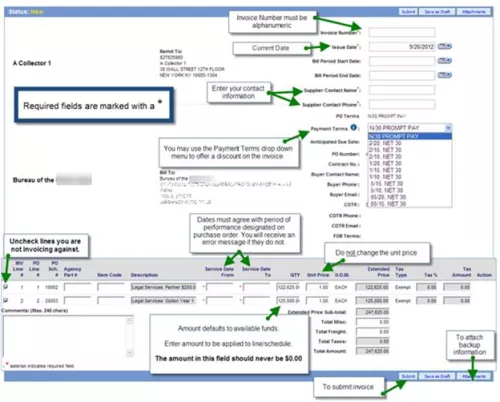
- Complete all required fields marked with an asterisk before submitting the invoice.
Image
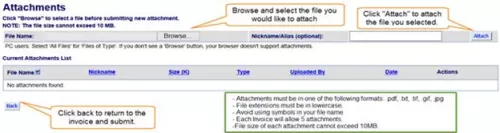
- Attaching backup information.
- Attachments screen displays.
- Browse to locate file and double click on the file name.
- Select Attach and verify the attachment has been created by viewing File Name.
- Select the Back button.
Image
- At the bottom right of the screen select Submit.
Image

- Invoice Submission confirmation message.
Image

Need Help?
Accounts Payable Help Desk
Monday - Friday (Except Federal Holidays)
7:00 AM - 6:00 PM EST
(304) 480 - 8000, Option 7
accountspayable@fiscal.treasury.gov
Return to the IPP Quick Reference Guide